English: Choose your language in the box right below. | Vietnamese: Chọn ngôn ngữ của bạn trong hộp bên dưới. | Abkhazian: Иалшәх шәбызшәа ҵаҟа иаагоу аҭаӡҩыраҿы. | Afrikaans: Kies jou taal in die blokkie regs hieronder. | Acehnese: Pileh basa droeneuh lam kotak tepat di miyup nyoe. | Acoli: Yer leb ma imito i bok ma tye piny kany. | Afar: Gubal yan sandugih addat isi af door. | Akan: Paw wo kasa wɔ adaka a ɛwɔ ase hɔ pɛɛ no ​​mu. | Albanian: Zgjidhni gjuhën tuaj në kutinë menjëherë më poshtë. | Amharic: ከዚህ በታች ባለው ሳጥን ውስጥ ቋንቋዎን ይምረጡ። | Arabic: اختر لغتك في المربع الموجود أسفل هذا مباشرةً. | Armenian: Ընտրեք ձեր լեզուն ներքևի վանդակում։ | Assamese: তলৰ বাকচটোত আপোনাৰ ভাষা বাছক। | Aymara: Aka amparamp qillqt’at cuadro ukanx arunak ajlliñamawa. | Azerbaijani: Aşağıdakı qutuda dilinizi seçin. | Bambara: I ka kan sugandi yɔrɔ la min bɛ duguma yɛrɛ. | Bangla: ঠিক নিচের বক্সে আপনার ভাষা নির্বাচন করুন। | Basque: Aukeratu zure hizkuntza beheko laukian. | Belarusian: Выберыце мову ў полі справа ніжэй. | Bhojpuri: ठीक नीचे दिहल बॉक्स में आपन भाषा चुनीं। | Bosnian: Odaberite svoj jezik u polju odmah ispod. | Bulgarian: Изберете езика си в полето точно по-долу. | Burmese: အောက်ပါ ညာဘက်အကွက်တွင် သင့်ဘာသာစကားကို ရွေးချယ်ပါ။ | Catalan: Trieu el vostre idioma al quadre que hi ha just a sota. | Cebuano: Pilia ang imong pinulongan sa kahon sa ubos. | Central Kurdish: لە بۆکسەکەی خوارەوە زمانەکەت هەڵبژێرە. | Chinese (Simplified): 请在正下方的方框中选择您的语言。 | Chinese (Traditional): 請在正下方的方格中選擇您的語言。 | Vietnamese: Chọn ngôn ngữ của bạn trong hộp bên dưới. | Corsican: Sceglite a vostra lingua in a casella ghjustu quì sottu. | Croatian: Odaberite svoj jezik u okviru odmah ispod. | Czech: Vyberte si jazyk v poli hned níže. | Danish: Vælg dit sprog i boksen lige nedenfor. | Dari: زبان خود را در کادر درست زیر انتخاب کنید. | Divehi: ހަމަ ތިރީގައިވާ ފޮށީގައި ތިމާގެ ބަސް ހޮވާށެވެ. | Dogri: ठीक थल्ले दित्ते गेदे बॉक्स च अपनी भाशा चुनो। | Dutch: Kies uw taal in het vak direct hieronder. | Dzongkha: གཤམ་གྱི་སྒྲོམ་ནང་ལུ་ ཁྱོད་རའི་སྐད་ཡིག་གདམ་ཁ་རྐྱབས།. | Esperanto: Elektu vian lingvon en la skatolo sube. | Estonian: Valige oma keel allolevas kastis. | Ewe: Tia gbe si nèdona le aɖaka si le ete tututu me. | Fijian: Digitaka na nomu vosa ena kato e ra sara ga. | Filipino: Piliin ang iyong wika sa kahon sa ibaba. | Finnish: Valitse kielesi alla olevasta laatikosta. | French: Choisissez votre langue dans le cadre juste en dessous. | Friulian: Sielzi la tô lenghe inte caselle sot. | Fulani: Suɓo ɗemngal maa e nder lowre les ndee. | Galician: Escolle o teu idioma no cadro de embaixo. | Ganda: Londa olulimi lwo mu kasanduuko wansi ddala. | Georgian: აირჩიეთ თქვენი ენა ქვემოთ მოცემულ ველში. | German: Wählen Sie Ihre Sprache im Feld direkt darunter. | Greek: Επιλέξτε τη γλώσσα σας στο πλαίσιο ακριβώς από κάτω. | Romanian: Alegeți limba în caseta de mai jos. | Russian: Выберите язык в поле прямо ниже. | English: Choose your language in the box right below. | Vietnamese: Chọn ngôn ngữ của bạn trong hộp bên dưới. | Guarani: Eiporavo ne ñe’ẽ pe cuadro oĩva iguýpe voi. | Gujarati: નીચે આપેલા બોક્સમાં તમારી ભાષા પસંદ કરો. | Haitian Creole: Chwazi lang ou nan kare ki anba a. | Hausa: Zaɓi harshen ku a cikin akwatin dama a ƙasa. | Hawaiian: E koho i kāu ʻōlelo ma ka pahu ma lalo. | Hebrew: בחר את השפה שלך בתיבה ממש למטה. | Hindi: ठीक नीचे दिए गए बॉक्स में अपनी भाषा चुनें। | Hmong: Xaiv koj hom lus hauv lub thawv hauv qab no. | Hungarian: Válassza ki a nyelvet a jobb oldali mezőben. | Iban: Pilih jaku nuan ba kutak ba baruh tu. | Icelandic: Veldu tungumál í reitnum hér fyrir neðan. | Igbo: Họrọ asụsụ gị n'igbe dị n'okpuru. | Iloko: Piliem ti pagsasaom iti kahon iti baba a mismo. | Indonesian: Pilih bahasa Anda di kotak tepat di bawah ini. | Irish: Roghnaigh do theanga sa bhosca ar dheis thíos. | Italian: Scegli la tua lingua nel riquadro qui sotto. | Jamaican Patois: Chuuz yu langwij iina di baks rait dong ya so. | Japanese: すぐ下のボックスから言語を選択してください。 | Javanese: Pilih basa sampeyan ing kothak ing ngisor iki. | Kannada: ಕೆಳಗಿನ ಪೆಟ್ಟಿಗೆಯಲ್ಲಿ ನಿಮ್ಮ ಭಾಷೆಯನ್ನು ಆರಿಸಿ. | Kazakh: Төмендегі ұяшықтан тіліңізді таңдаңыз. | Kanuri: Təlamnəm karne suro box cidiyannedən. | Khasi: Jied ia ka ktien jong phi ha ka synduk kaba don harum. | Khmer: ជ្រើសរើសភាសារបស់អ្នកនៅក្នុងប្រអប់ខាងក្រោម។ | Kinyarwanda: Hitamo ururimi rwawe mu gasanduku hepfo. | Kokborok: Nini kokno twiwi box ni thani chongdi. | Komi: Бӧрйы ассьыд кывтӧ дзик улын ӧшинь улын. | Kongo: Pona ndinga na nge na kisika yina bo me sonika na nsi. | Konkani: सकयल दिल्ल्या बॉक्सांत तुमची भास निवडात. | Korean: 바로 아래 상자에서 언어를 선택하세요. | Chinese (Simplified): 请在正下方的方框中选择您的语言。 | Chinese (Traditional): 請在正下方的方格中選擇您的語言。 | Krio: Pik yu langwej na di bɔks we de rayt dɔŋ ya. | Kurdish: Zimanê xwe di qutiya rastê ya jêrîn de hilbijêre. | Kyrgyz: Төмөнкү кутудан тилиңизди тандаңыз. | Lao: ເລືອກພາສາຂອງທ່ານໃນປ່ອງທາງລຸ່ມ. | Lao: ເລືອກພາສາຂອງທ່ານໃນປ່ອງທາງລຸ່ມ. | Latgalian: Izavielej sovu volūdu tīši zamuok asūšajā rūteņā. | Latvian: Izavielej sovu volūdu tīši zamuok asūšajā rūteņā. | Ligurian: Scegli a vòstra lengua inta casella giusto chì sotta. | Limburgish: Kies eure taal in ‘t vakje hieronder. | Lithuanian: Pasirinkite kalbą žemiau esančiame laukelyje. | Lombard: Scegli la tò lengua in de la casella sotta. | Luxembourgish: Wielt Är Sprooch an der Këscht direkt hei drënner. |Madurese: Pèlè bhâsa è kotak sè teppa' è bâbâ panèka. | Macedonian: Изберете го вашиот јазик во полето веднаш подолу. | Maithili: ठीक नीचाँ देल गेल बॉक्स मे अपन भाषा चुनू। | Makasar: Pilei bahasanu ri kotak ri yawa. | Malagasy: Fidio ny fiteninao ao amin'ny boaty etsy ambany. | Malay: Pilih bahasa anda dalam kotak di sebelah kiri. | Malay (Arabic): ڤيليه بهاس اندا د دالم كوتق د باوه. | Malayalam: ഇടതുവശത്തുള്ള ബോക്സിൽ നിങ്ങളുടെ ഭാഷ തിരഞ്ഞെടുക്കുക. | Maltese: Agħżel il-lingwa tiegħek fil-kaxxa eżatt hawn taħt. | Manipuri: ꯃꯈꯥꯗꯥ ꯄꯤꯔꯤꯕꯥ ꯕꯣꯛꯁ ꯑꯁꯤꯗꯥ ꯅꯍꯥꯛꯀꯤ ꯂꯣꯜ ꯑꯗꯨ ꯈꯜꯂꯨ꯫ | Māori: Kōwhiria tō reo i roto i te pouaka kei raro iho nei. | Marathi: खालील चौकटीत तुमची भाषा निवडा. | Marwari: नीचै दियोड़ा बॉक्स मांय आपरी भाषा चुणो। | Mizo: A hnuaia box-ah hian i tawng thlang rawh. | Meadow Mari: Тӱҥ лаштыкыште шке йылмым ойырен налза. | Mongolian: Доорх нүднээс хэлээ сонгоно уу. | Morisyen: Swazir ou lang dan bwat anba. | Nepalbhasa: क्वय् च्वंगु बाकसय् छंगु भाय् ल्य । | Nepali: बायाँको बाकसमा आफ्नो भाषा छान्नुहोस्। | English: Choose your language in the box right below. | Vietnamese: Chọn ngôn ngữ của bạn trong hộp bên dưới. | Northern Sotho: Kgetha polelo ya gago ka lepokising thwii ka fase. | Norwegian: Velg språk i boksen rett nedenfor. | Nyanja: Sankhani chinenero chanu m'bokosi lomwe lili pansipa. |Occitan: Causissètz vòstra lenga dins la bóstia juste çai-jos. | Odia: ତଳେ ଥିବା ବାକ୍ସରେ ଆପଣଙ୍କ ଭାଷା ବାଛନ୍ତୁ। | Oromo: Afaan keessan saanduqa armaan gadii keessatti filadhaa. | Ossetic: Равзарут уæ æвзаг дæлæ цы рамкæ ис, уым. | Pampanga: Pilinan me ing amanu mu king kahun king lalam. | Pangasinan: Pilien so lenguahem diad kahon ed leksab. | Pashto: په لاندې بکس کې خپله ژبه غوره کړئ. | Persian: زبان خود را در کادر سمت راست زیر انتخاب کنید. | Polish: Wybierz język w polu po lewej stronie. | Portuguese: Escolha seu idioma na caixa à esquerda. | Punjabi: ਹੇਠਾਂ ਦਿੱਤੇ ਬਾਕਸ ਵਿੱਚੋਂ ਆਪਣੀ ਭਾਸ਼ਾ ਚੁਣੋ। | Quechua: Uraypi kaq cuadropi simiykita akllay. | Romanian: Alegeți limba în caseta de mai jos. | Romary: Alosar tiri ćhib anθ-i kutia rigate telal. | Rundi: Hitamwo ururimi rwawe mu gasandugu kari musi cane. | Russian: Выберите язык в поле прямо ниже. | Chinese (Simplified): 请在正下方的方框中选择您的语言。 | Chinese (Traditional): 請在正下方的方格中選擇您的語言。 | Samoan: Filifili lau gagana ile pusa i lalo. | Sango: Soro yanga ti kodoro ti mo na yâ ti encadré so ayeke na gbe ni ge. | Sanskrit: अधोलिखिते पेटीयां स्वभाषां चिनोतु। | Scottish Gaelic: Tagh do chànan sa bhogsa gu h-ìosal. | Serbian: Изаберите свој језик у пољу одмах испод. | Shan: လိူၵ်ႈၽႃႇသႃႇၵႂၢမ်းလၢတ်ႈ တီႈၼႂ်း box ဢၼ်မီးပႃႈတႂ်ႈၼႆႉတႃႉ။ | Shona: Sarudza mutauro wako mubhokisi riri pazasi chaipo. | Sicilian: Scegghi la tò lingua ntâ casella propriu sutta. | Silesian: Ôbiyraj swoja godka w pōniższym polu. | Sindhi: هيٺ ڏنل دٻي ۾ پنهنجي ٻولي چونڊيو. | Sinhala: පහත කොටුවේ ඔබේ භාෂාව තෝරන්න. | Slovak: Vyberte si jazyk v poli hneď nižšie. | Slovenian: V spodnjem polju izberite svoj jezik. | Somali: Dooro luqadaada sanduuqa hoose. | Southern Sotho: Khetha puo ea hau lebokoseng le ka tlaase mona. | Spanish: Elige tu idioma en el cuadro de abajo. | Sundanese: Pilih basa anjeun dina kotak katuhu handap. | Swahili: Chagua lugha yako katika kisanduku kilicho hapa chini. | Swati: Khetsa lulwimi lwakho kulelibhokisi lelingentasi. | Swedish: Välj ditt språk i rutan precis nedan. | Tahitian: I roto i te afata i raro nei, a maiti i to outou reo. | Tajik: Забони худро дар қуттии рости зер интихоб кунед. | Tamazight: Fren tutlayt-ik deg tfelwit ddaw-a. | Tamil: கீழே உள்ள பெட்டியில் உங்கள் மொழியைத் தேர்ந்தெடுக்கவும். | Tatar: Түбәндәге рамкада телегезне сайлагыз. | Telugu: కింద ఉన్న పెట్టెలో మీ భాషను ఎంచుకోండి. | Thai: เลือกภาษาของคุณในช่องด้านล่างนี้ | Tigrinya: ኣብዚ ልክዕ ኣብ ታሕቲ ዘሎ ሳጹን ቋንቋኻ ምረጽ። | Tibetan: གཤམ་གྱི་སྒམ་ནང་ཁྱེད་རང་གི་སྐད་ཡིག་འདེམས། | Tok Pisin: Yu mas makim tok ples bilong yu long bokis aninit. | Tongan: Fili hoʻo leá ʻi he puha ʻi laló tonu. | Tsonga: Hlawula ririmi ra wena ebokisini leri nga laha hansi. | Tswana: Tlhopha puo ya gago mo lebokosong le le fa tlase. | Tulu: ಕೆಳ್ಗ್ ಉಪ್ಪುನ ಬಾಕ್ಸ್ ಡ್ ನಿಕ್ಲೆನ ಬಾಸೆನ್ ಆಯ್ಕೆ ಮಲ್ಪುಲೆ. | Turkish: Hemen aşağıdaki kutudan dilinizi seçin. | Turkmen: Aşakdaky gutuda diliňizi saýlaň. | Tuvinian: Дылыңарны адаанда шөлден шилип алыңар. | Ukrainian: Быръе аслэсьтыд кылдэ ӵапак улӥын сётэм рамкаысь. | Ukrainian: Виберіть свою мову в полі праворуч нижче. | Urdu: نیچے دیے گئے باکس میں اپنی زبان کا انتخاب کریں۔ | Uyghur: تۆۋەندىكى رامكىدىن تىلىڭىزنى تاللاڭ. | Uzbek: Quyidagi maydonchada tilingizni tanlang. | Wolof: Tannal sa làkk ci barab bi ci suuf. | Venda: Khethani luambo lwaṋu kha bogisi ḽi re afho fhasi. | Venetian: Scegli la tua lingua nella casella proprio sotto. | Vietnamese: Chọn ngôn ngữ của bạn trong hộp bên dưới. | Waray: Pilia an imo yinaknan ha kahon ha ubos mismo. | Welsh: Dewiswch eich iaith yn y blwch dde isodh. | Western Frisian: Kies dyn taal yn it fakje rjochts hjirûnder. | Xhosa: Khetha ulwimi lwakho kwibhokisi elapha ngezantsi. | Yakut: Тылгын аллараа баар дьааһыкка талан ыл. | Yiddish: קלייַבט אייער שפּראַך אין דער קעסטל רעכט אונטן. | Yoruba: YYan ede rẹ ninu apoti ọtun ni isalẹ. | Yucatec Maya: Yéey a t'aan te' cuadro yaan yáanal. | Zapotec: Biyubi diidxaʼ ni riníʼluʼ lu cuadru ni zeeda raríʼ. | Zulu: Khetha ulimi lwakho ebhokisini elingezansi. | Romanian: Alegeți limba în caseta de mai jos. | Russian: Выберите язык в поле прямо ниже. |
☆ ☆ ☆ ☆ ☆
Web Translator: 👉  
☆ ☆ ☆ ☆ ☆

☆☆☆☆☆ About ZFilePackager Zip Application ☆☆☆☆☆


Professional History

Main ëHome: http://www.TheGCODECreator.com | http://www.TheCloudOSCenter.com

The ZFilePackager application is a standalone application.
You can double click on the filename 'ZFilePackager.jar' to run. If the application cannot able to open and run,
you may need to install Java Runtime Environment [JRE] into your system in order to run this Java application.
You can click here to download and install Java JRE (Java Runtime Environment).

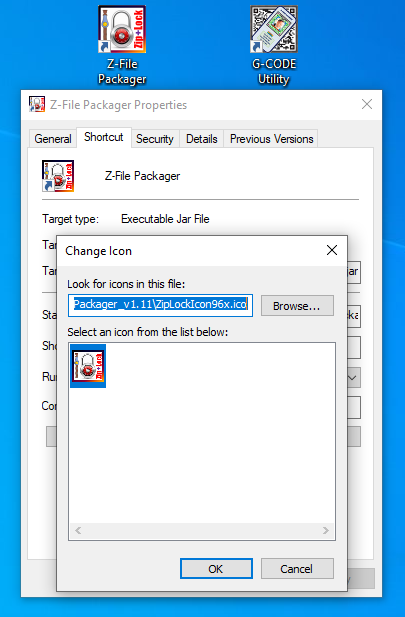
 How to create Windows Desktop icon & Windows Shortcut?

  1. Assumed that you download ZFilePackager_v1.12.zip and extracted into 'C:\W10-SECURED-FOLDER\ZFilePackager_v1.12'.
  2. You will have files 'ZFilePackager_v1.12.jar', 'ZipLockIcon96x.ico' files.
  3. Create Windows Desktop Shortcut by right-click 'ZFilePackager_v1.12.jar' and select 'Send_to->_Desktop (Create_shortcut)'
  4. Then select and right-click 'ZFilePackager_v1.12.jar Shortcut' on the Desktop and select '_Properties->Change Icon...'; then browse for 'C:\W10-SECURED-FOLDER\ZFilePackager_v1.12\ZipLockIcon96x.ico'.
  5. Click 'OK' button to confirm.

 How to create Mac Desktop icon & Mac Shortcut?

  1. First make sure your have Java JRE installed on your Mac PC. If not then you can click here to download and install Java JRE.
  2. Assumed that you download ZFilePackager_v1.12.zip and extracted into 'Users/../Desktop/../ZFilePackager_v1.12'.
  3. You will have files 'ZFilePackager_v1.12.jar', 'ZipLockIcon96x.png' files.
  4. Create Mac Desktop Shortcut by press and hold '_Option_+_Command_' keys from Mac Keyboard and drag 'ZFilePackager_v1.12.jar' to the desktop then release keys.
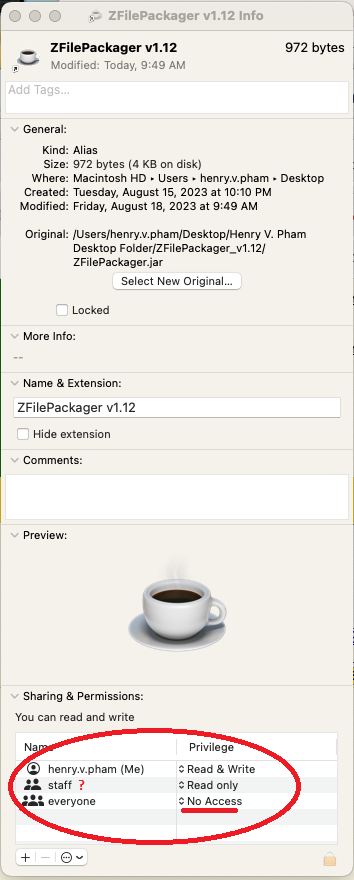
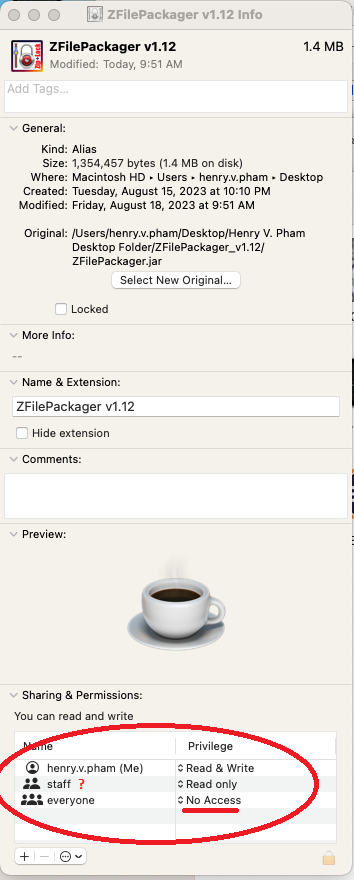
  5. Then select and right-click 'ZFilePackager_v1.12.jar Shortcut' on the Desktop and select '_Get Info_'; then browse for 'Users/../Desktop/../ZFilePackager_v1.12/ZipLockIcon96x.png'.
  6. Drag this image icon to the top left corner icon to replace; the new icon will show.
  7. For additional secured purposes, you change the '_Sharing_ & _Permissions_' for everyone account to 'No Access'. Note: This can be used for other files/folder security purposes to protect your files in Mac PC environment.
  8. Finally, you can open the app by double-click on the shortcut icon. If the Mac complains the ZFilePackager app is from unidentified developer, you can try press Ctrl control key and click '_Open_' and confirm to open the ZFilePackager app.

About ZFilePackager Application

The ZFilePackager application is designed to zip and pack files with high
encryption method using 4K Password Sequence Generator.
The 4K Password Sequence Generator is designed to
prevent revert engineering or revert password in any forms.

The application supports additional input Magic number for more secured than just the Password.
The password field supports up to 50 bytes which can fit a sentence,
and the Magic Number field supports up to 25 bytes.
The Password and Magic Number is optional if the users do not want
to secure their zipped files with the 4K Password Sequence Generator.

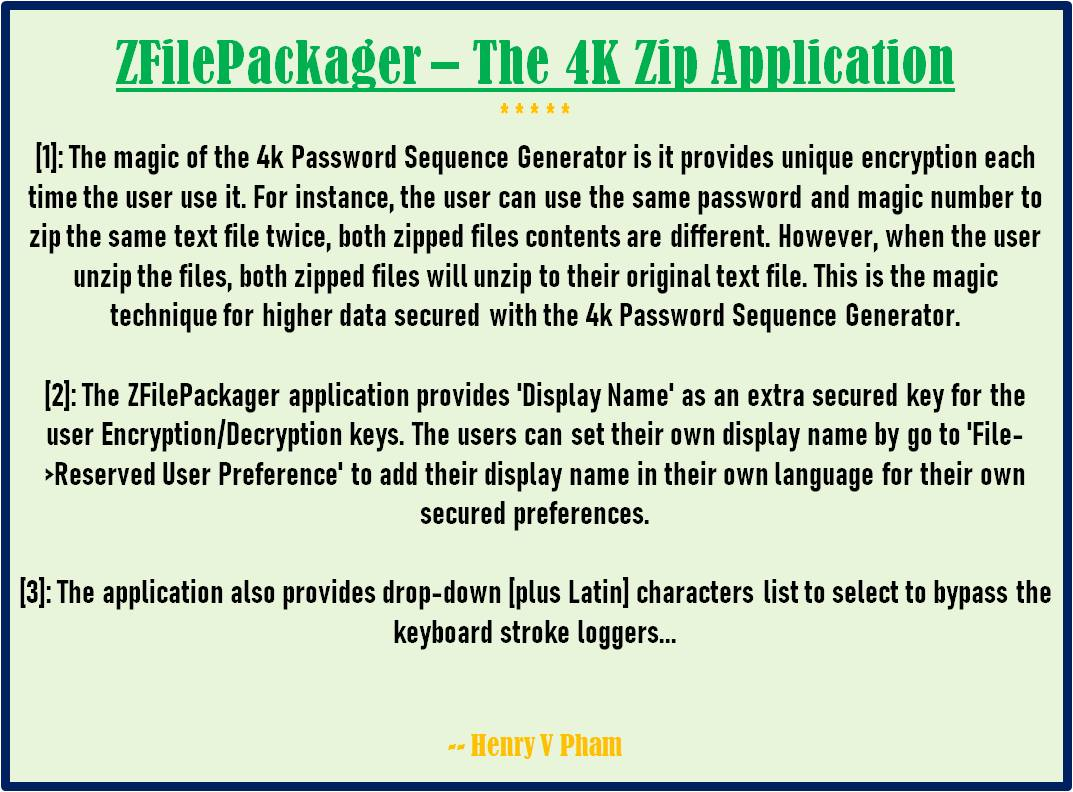
The magic of the 4K Password Sequence Generator is it provides unique encryption each time the users use it.
For instance, the users can use the same password and magic number to zip the same text file twice,
both zipped files with binary contents are different.
However, when the users unzip the files, both zipped files will be unzipped to their original text file.
This is the magic technique for higher data secured with 4K Password Sequence Generator or the 4K Number Encryptor.
This is one of the Dynamic Protocol ideas from the Cloud OS Invention to prevent hackers from probe and decode in the middle of data transferring.

Note: The 4k Number is the number has 4k bytes/digits long.
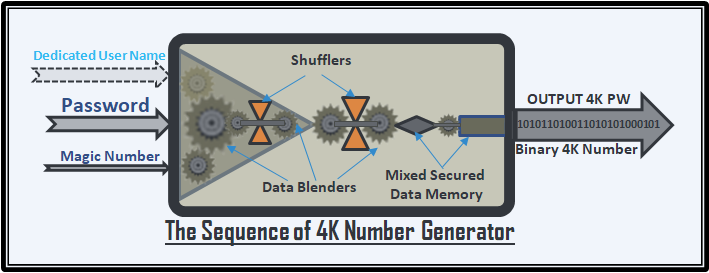
Password & Magic Number plus Additional Option 'Dedicated User' username which is case-sensitive and
provided with the setting from File menu of the ZFilePackager app; all these go through the 4k Number Generator.
Cloud OS will use Dedicated User as the user account name as a requirement parameter for 4k Number Encryption.

The Encryption Sequence of 4k Number Generator

Note: The 4k Password will be used as the 4k Encryption Key for Data Shuffling with 4k Number Encryption.

The Two Martyrs Data Shuffler

The latest version ZFilePackager_v1.12 with revision history can be viewed from '_Help->About_' application menu.

Please visit the website 'www.TheGCODECreator.com' |OR| http://www.TheCloudOSCenter.com for more details.

About ZFilePackager Application Revisions

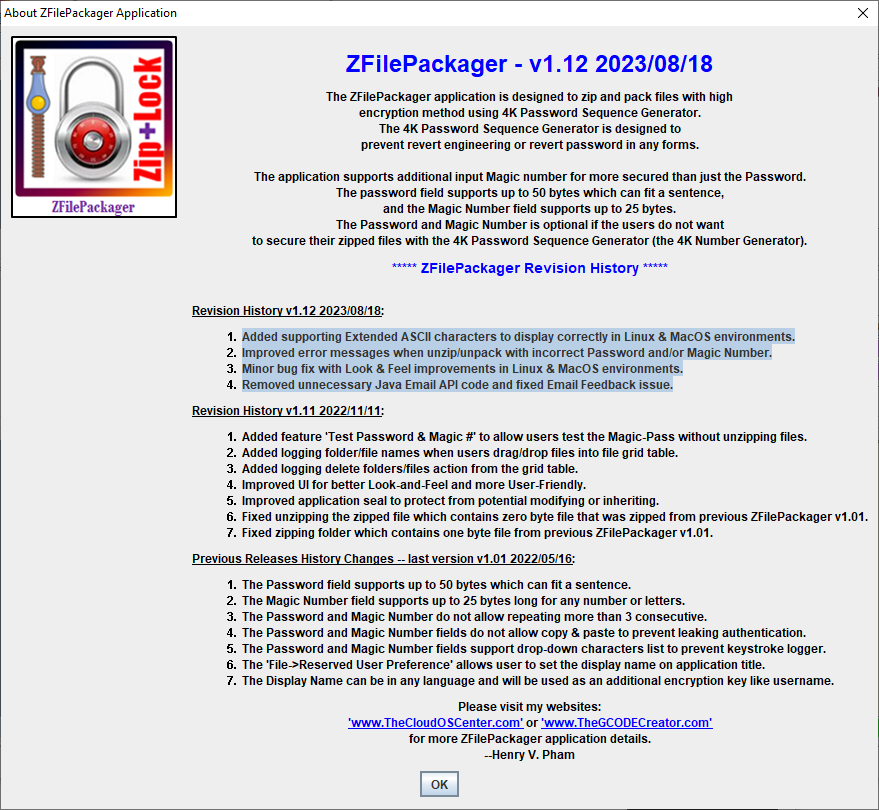
ZFilePackager - v1.12 2023/08/18

The ZFilePackager application is designed to zip and pack files with high
encryption method using 4K Password Sequence Generator.
The 4K Password Sequence Generator is designed to
prevent revert engineering or revert password in any forms.

The application supports additional input Magic number for more secured than just the Password.
The password field supports up to 50 bytes which can fit a sentence,
and the Magic Number field supports up to 25 bytes.
The Password and Magic Number is optional if the users do not want
to secure their zipped files with the 4K Password Sequence Generator (the 4K Number Generator).

***** ZFilePackager Revision History *****

    Revision History v1.12 2023/08/18:
    1. Added supporting Extended ASCII characters to display correctly in Linux & MacOS environments.
    2. Improved error messages when unzip/unpack with incorrect Password and/or Magic Number.
    3. Minor bug fix with Look & Feel improvements in Linux & MacOS environments.
    4. Removed unnecessary Java Email API code and fixed Email Feedback issue.
    Revision History v1.11 2022/11/11:
    1. Added feature 'Test Password & Magic #' to allow users test the Magic-Pass without unzipping files.
    2. Added logging folder/file names when users drag/drop files into file grid table.
    3. Added logging delete folders/files action from the grid table.
    4. Improved UI for better Look-and-Feel and more User-Friendly.
    5. Improved application seal to protect from potential modifying or inheriting.
    6. Fixed unzipping the zipped file which contains zero byte file that was zipped from previous ZFilePackager v1.01.
    7. Fixed zipping folder which contains one byte file from previous ZFilePackager v1.01.
    Previous Releases History Changes -- first version v1.01 2022/05/16:
    1. The Password field supports up to 50 bytes which can fit a sentence.
    2. The Magic Number field supports up to 25 bytes long for any number or letters.
    3. The Password and Magic Number do not allow repeating more than 3 consecutive.
    4. The Password and Magic Number fields do not allow copy & paste to prevent leaking authentication.
    5. The Password and Magic Number fields support drop-down characters list to prevent keystroke logger.
    6. The 'File->Reserved User Preference' allows user to set the display name on application title.
    7. The Display Name can be in any language and will be used as an additional encryption key like username.
NOTICE:
The above text is rewrite from the About ZFilePackager which shows the revision history of the app which were In-App pre-compiled in the UI.
The purpose of rewriting the text here is to translate to other languages from the website based on the Language Select on top of the web page.
However, Cloud OS will support In-App Auto Translation. Please read the Cloud OS Detail page for more info.

Please visit my websites:
'www.TheGCODECreator.com' or http://www.TheCloudOSCenter.com
for more ZFilePackager application details.
--Henry V. Pham

ZFilePackager Additional Features

The ZFilePackager application allows the user to customize the application with
their own name in their own language or any language as the dedicated user name.
This feature "Reserved User Preference" can be found at 'File' menu.
The dedicated user name will be displayed on the top title window and
can be used as part of the Encryption/Decryption keys for your zipped files.
When this dedicated user name is set and used in the encryption keys,
only this dedicated user can able to open the zipped files
that came with this settings for higher data secured protection.
However, the user will have an option to disable this dedicated user name
when starting the zipping & packing action.
The ZFilePackager supports drag & drop multiple zipped files into unzipped data grid and unzip all at once.
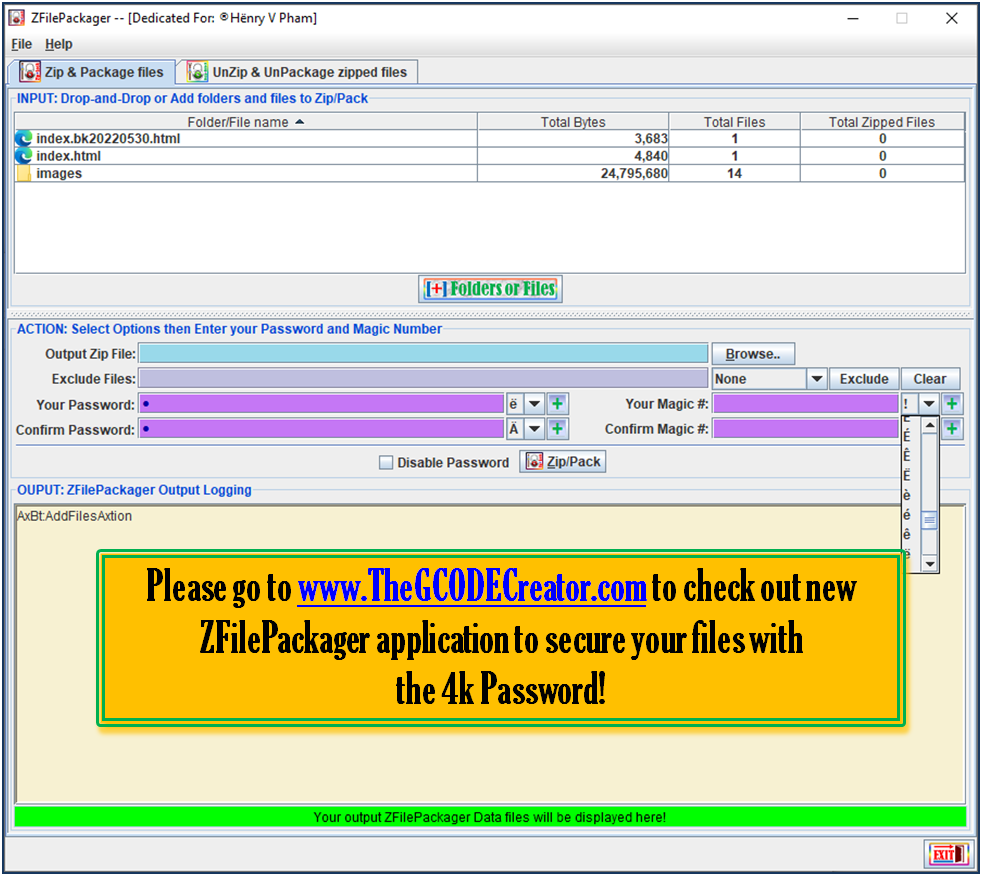
The ZFilePackager also supports dropdown Characters menu list next to the [+] button which allows the users to
select their favorite Latin Characters to be used as part of their Password and Magic Number;
and insert that character into any position within MagicPass for higher data secured purposes.
This feature also help the users to bypass the Keyboard Logger which can be tracked by Hackers.
The ZFilePackager app also supports user friendly which allows the users to
click green status and progress bar to open output file or to cancel the zip or unzip process.
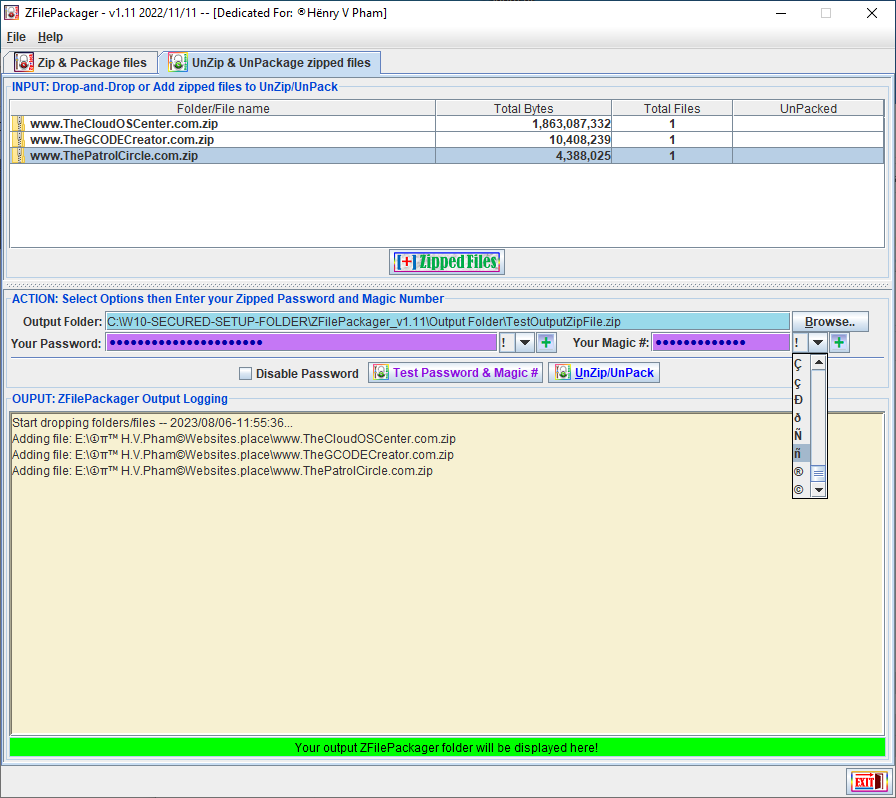
The ZFilePackager unzip panel with additional 'Test Password & Magic #' button which allows the users to
test MagicPass to ensure their MagicPass is correctly remember without unzip the content of zipped files.
Please checkout 'About' under 'Help --> About' menu for more details.

ZFilePackager Requirements

  • Make sure JRE is installed on your system by:
  • + Open Command Console by type 'cmd' from 'Search Programs and files' in windows.
    + From Windows Command Console type 'java -version', then press 'Enter'.
    + Expected the command showing 'java version "1.6.0_45"' or higher version.
    Java(TM) SE Runtime Environment (build 1.6.0_45-b06)
    Java HotSpot(TM) 64-Bit Server VM (build 20.45-b01, mixed mode)

  • If your system already has JRE installed but canot able to run:
  • + Right-Click on the ZFilePackager.jar then select 'Open With...' popup menu.
    + Select open with 'Java(TM) Platform SE binary' program and set as a default open program.

    ZFilePackager Main UI

    The Main UI of ZFilePackager Application


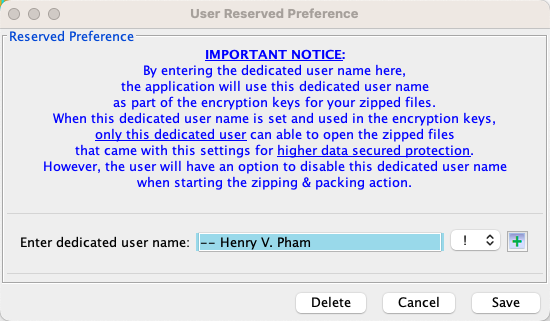
    The Dedicated User Name Setting Panel

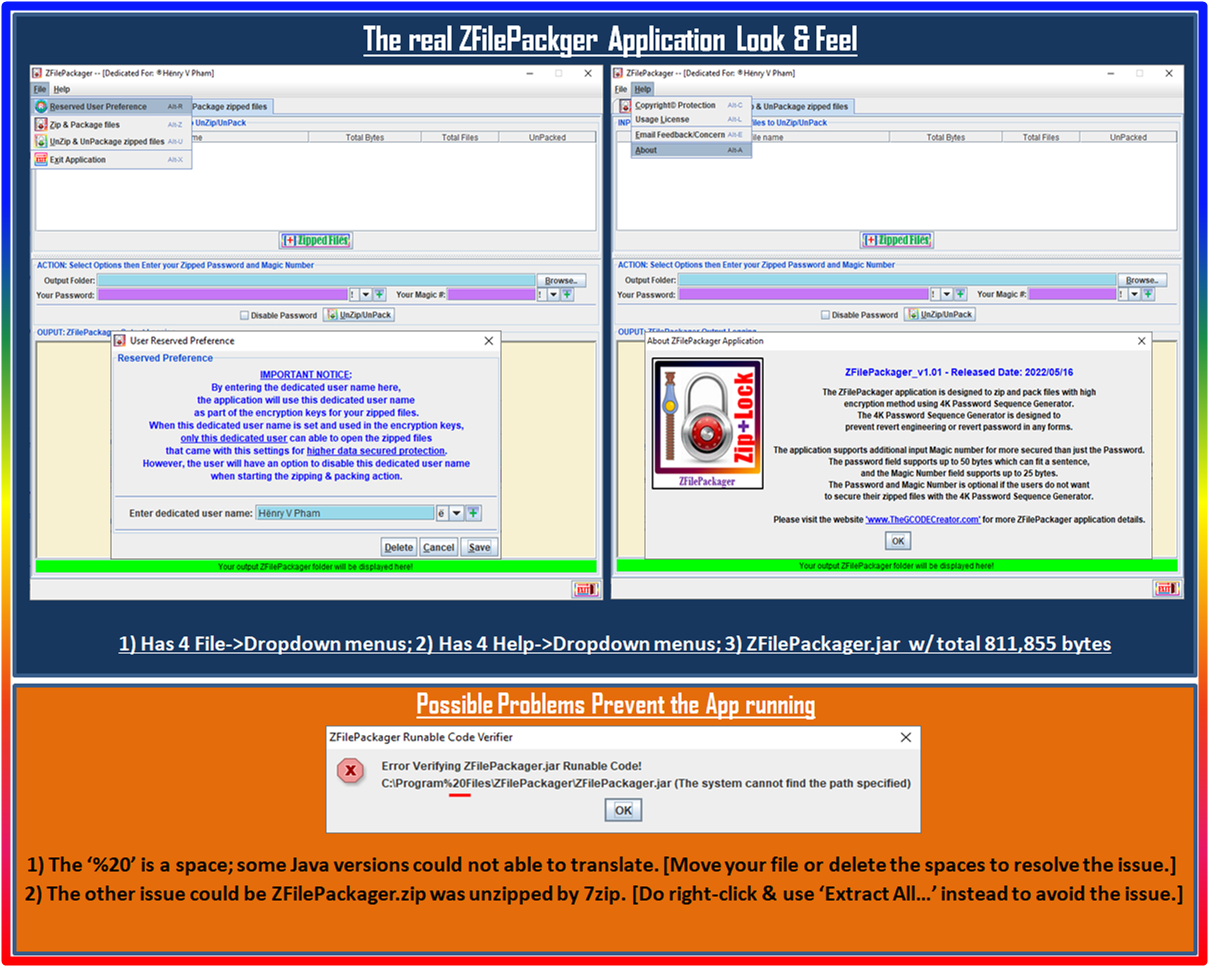
    IMPORTANT NOTICE:
    By entering the dedicated user name here,
    the application will use this dedicated user name
    as part of the encryption keys for your zipped files.
    When this dedicated user name is set and used in the encryption keys,
    only this dedicated user can able to open the zipped files
    that came with this settings for higher data secured protection.
    However, the user will have an option to disable this dedicated user name
    when starting the zipping & packing action.
    NOTEThe 'Dedicated User' username which is case-sensitive and
    will be stored in filename 'ZFilePackager.usr' under the same folder of the app.
    Make sure remember the dedicated user name to open your zipped files.
    Email Address can be used for easy to remember.


    NOTICE: The ZFilePackager app supports user friendly which allows the users to
    click green status and progress bar to open output file or to cancel the zip or unzip process.
    The green status progress  'Your output ZFilePackager folder will be displayed here!'  as shown above.

    ZFilePackager Look & Feel

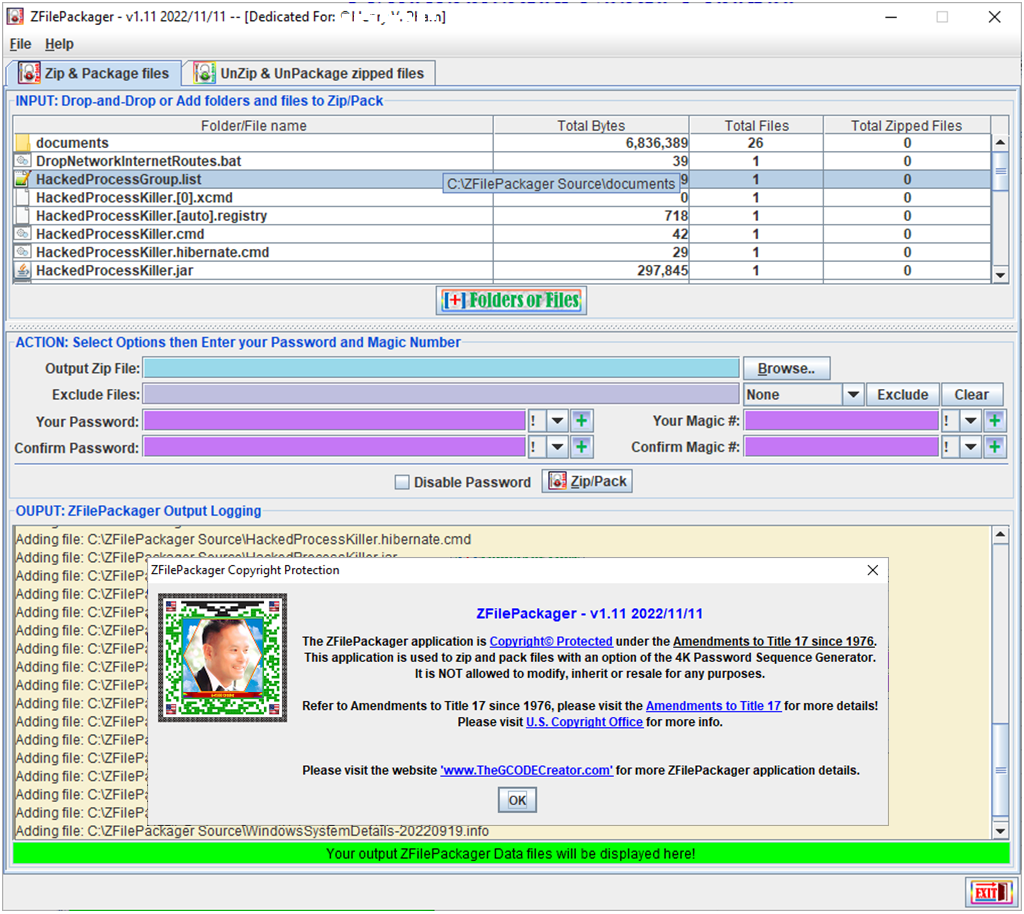
    ZFilePackager Copyright©

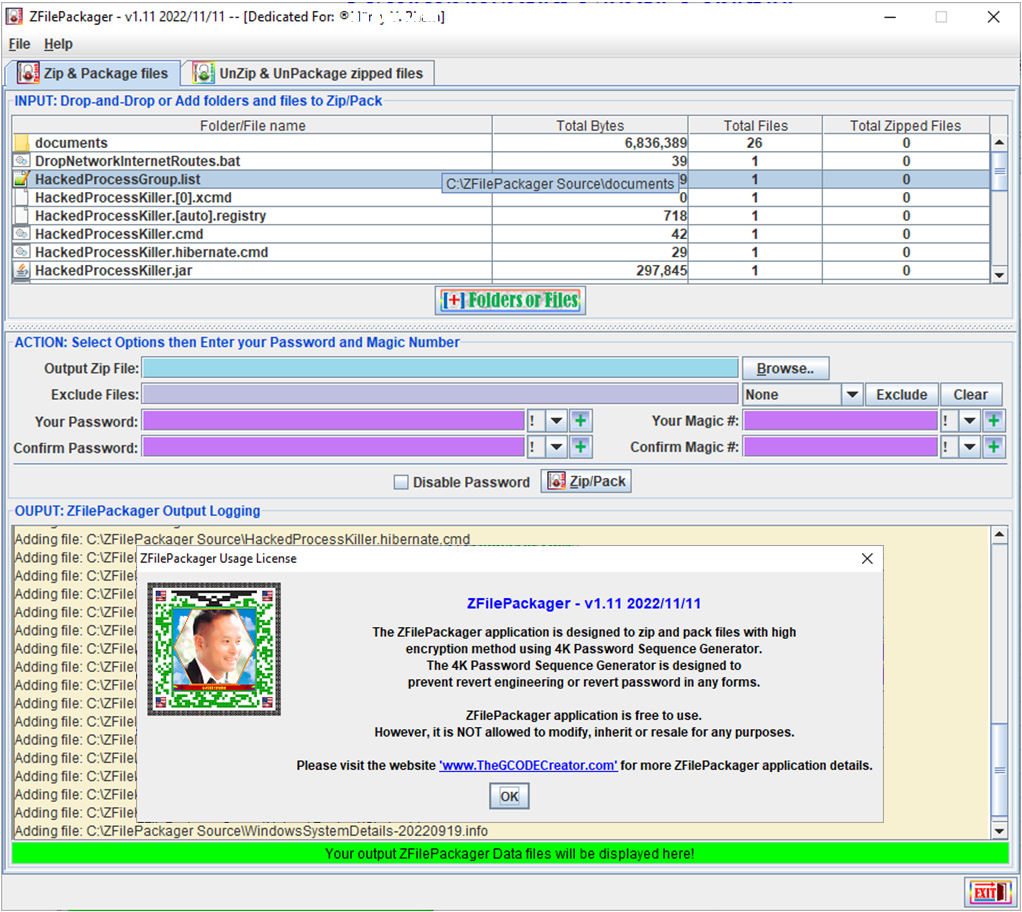
    ZFilePackager Usage License

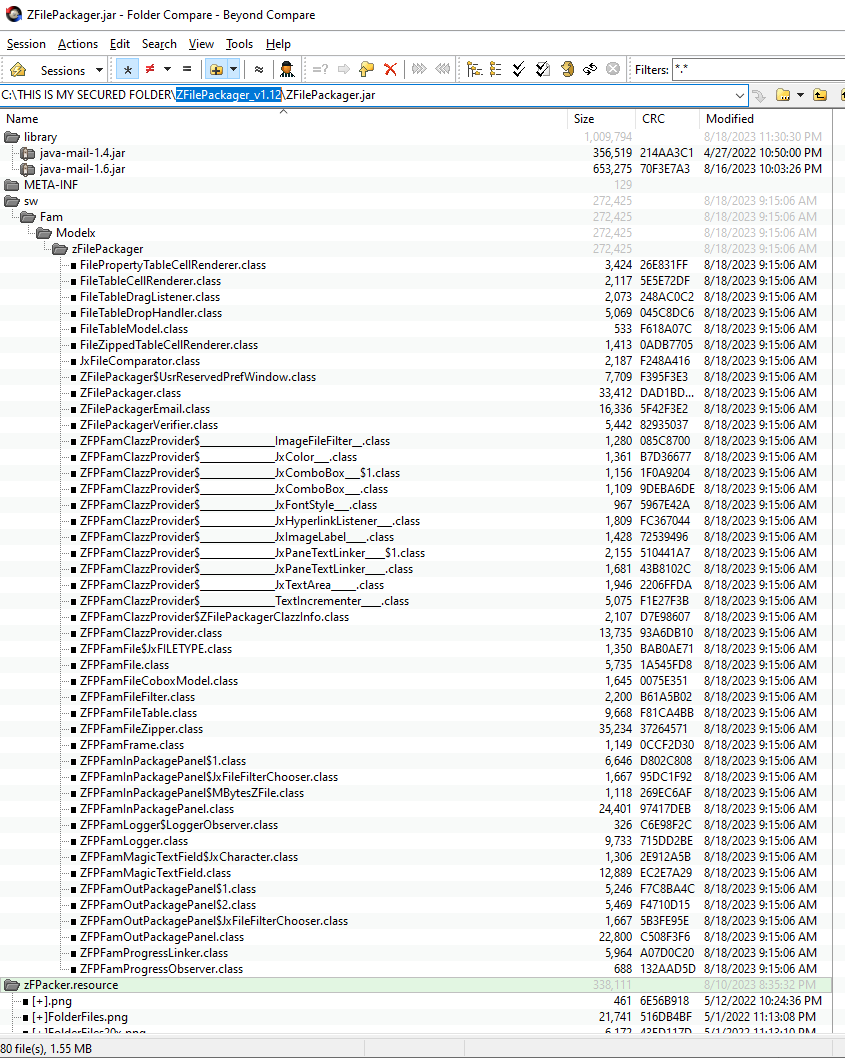
    ZFilePackager Binary Checksum Verification

    [Make sure package 'jx/fam/zFilePackager/' binary class files CRC and files size which were built in 08/18/2023]

    [The package contains ZFilePackager.jar with total of 1,424,794 bytes]

    [The binary class files in comparison view below are good!]


    Linked-in Profile

    Main ëHome: http://www.TheCloudOSCenter.com
    [Last updated: 2025-10-05 -- Henry V. Pham]


    Copyright© 2021[⨢] by www.TheCloudOSCenter.com. All Rights Resevered.